Reconciling your bank statement with your books, step by step
A monthly routine for Indian business owners — import the statement, confirm matches, record charges and interest, and get the difference to zero.
Falcon team, Godengine7 min read
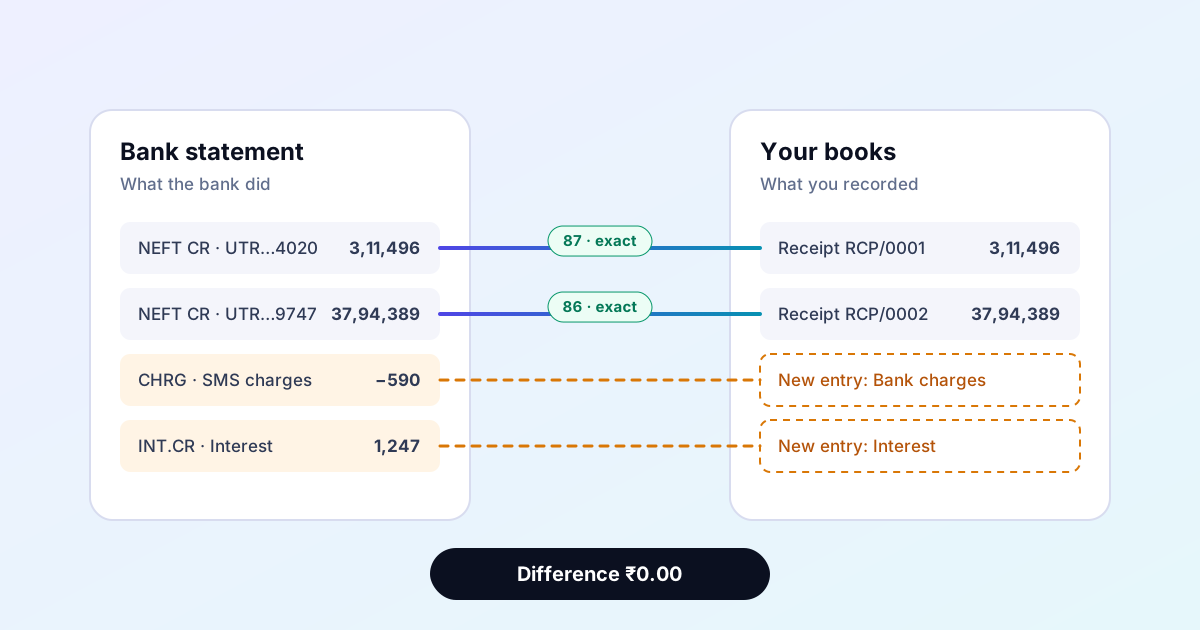
Your bank says you have one balance. Your books say another. Most months the gap is made of ordinary things: a customer's payment you have not recorded yet, a cheque you wrote that the payee has not deposited, a bank charge nobody told you about, a little interest. Reconciling is the work of naming each of those until nothing is left unexplained.
This guide walks through that work in Falcon, one step at a time, using a real statement import. It is written for the owner or the person who keeps the books, not for an accountant, and it says plainly where the software stops and your judgement starts.
What you need before you start
- The statement for the month, downloaded from your net banking. A CSV or Excel (.xlsx) download is best. A PDF works if it has real text in it; a scanned or photographed statement does not, because there is no text to read — only a picture of some.
- The bank account set up in Falcon, under Money → Bank accounts, linked to its ledger. A bank ledger is created with the company; check that the account number and the opening balance match your bank's records.
- The month's entries recorded: sales receipts, supplier payments, transfers between accounts. Reconciliation finds what is missing, but it works best when most of the month is already in the books.
Step 1: Import the statement
Open Money → Bank statements. Choose the bank account, choose the file, and press Import.
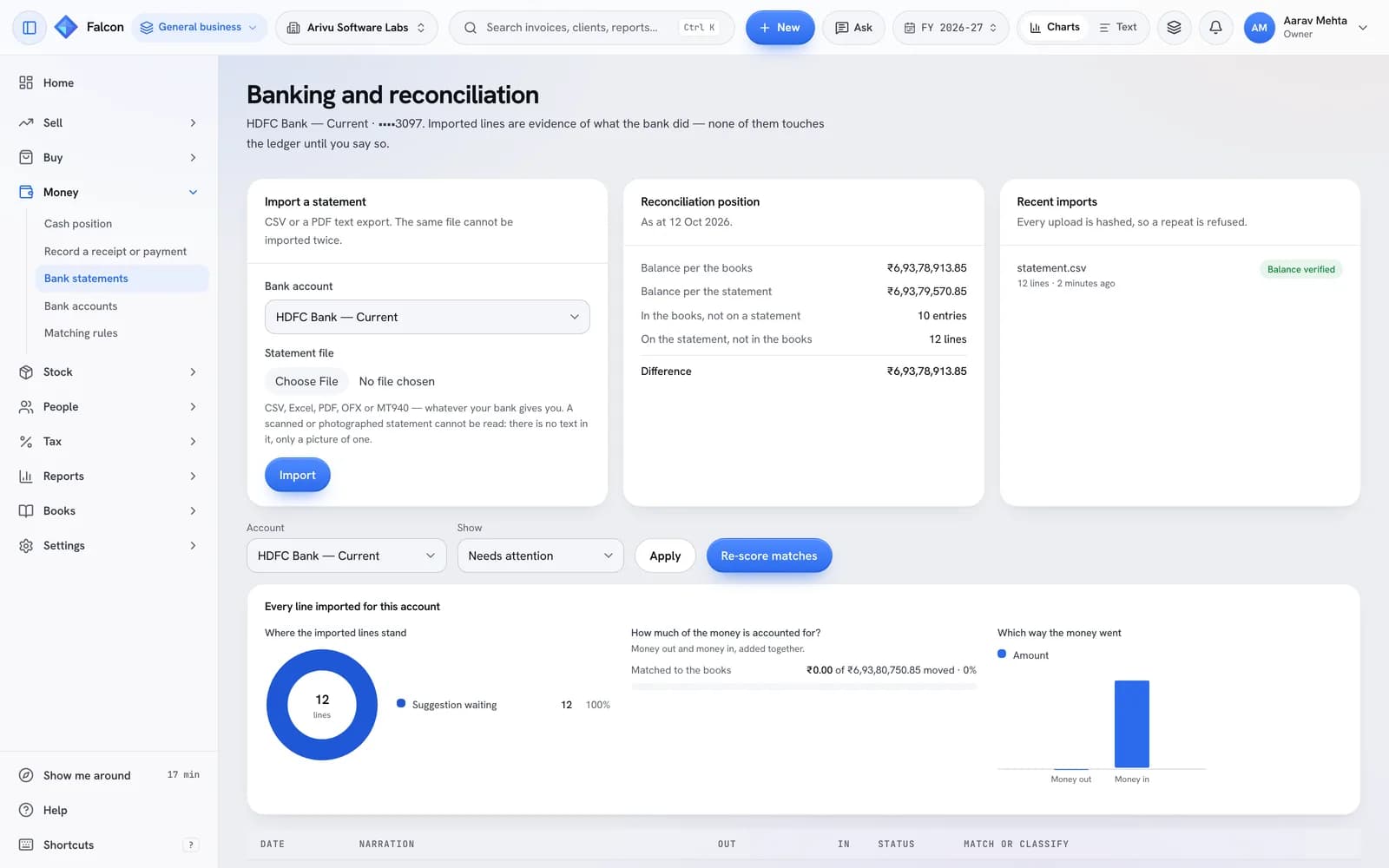
Three things happen that are worth knowing about:
- The same file cannot be imported twice. Falcon keeps a fingerprint of every file it has read, and a second upload of the same file is refused with the name of the import that already holds it. Lines that appeared in an earlier statement — when two downloads overlap by a few days — are marked "Looks like a repeat" rather than counted twice.
- The statement is checked against itself. If the file has a running balance column, every line is added up and compared with it. The import is labelled Balance verified or Balance check failed. If it fails, stop and look at the file: a column read the wrong way round becomes a wrong ledger.
- Nothing is posted. An imported line is evidence of what the bank did. It sits on this screen until you decide what it is.
Step 2: Confirm the matches Falcon suggests
For each line, Falcon looks for entries already in your books that could be the same event, and scores each candidate out of 100. Click the score to see how it was reached.
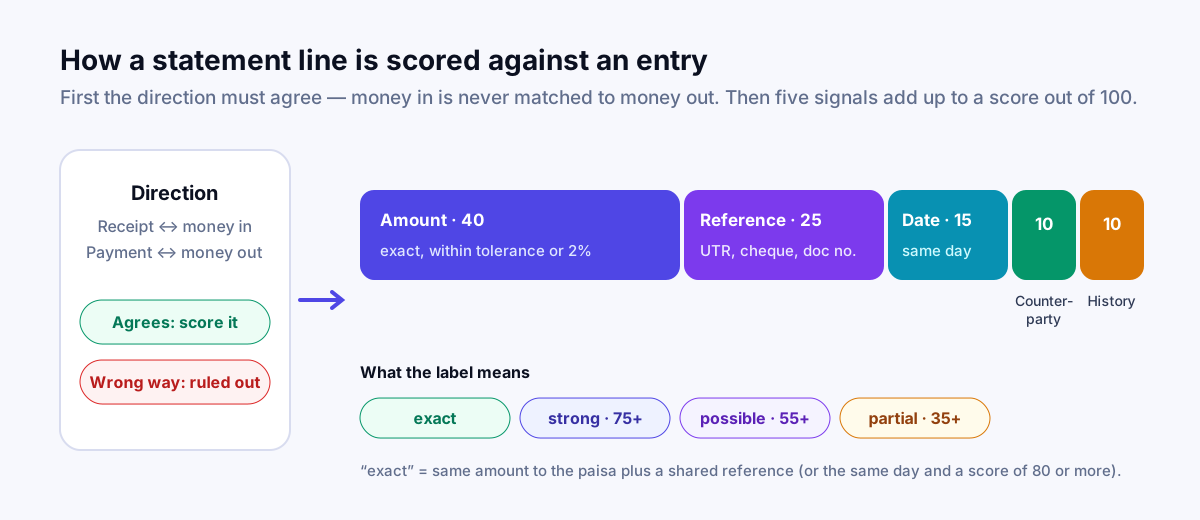
The direction comes first: money into the account is never matched to a payment, however well the rest lines up. After that, five signals add up:
| Signal | Points | What earns them |
|---|---|---|
| Amount | 40 | The same amount, or within a small tolerance, or within 2% when the bank deducted a charge |
| Reference | 25 | A UTR, cheque number or document number found on both sides |
| Date | 15 | The same day, falling away over the days either side |
| Counterparty | 10 | The party's name appearing in the bank's narration |
| History | 10 | This party matching a similar narration before |
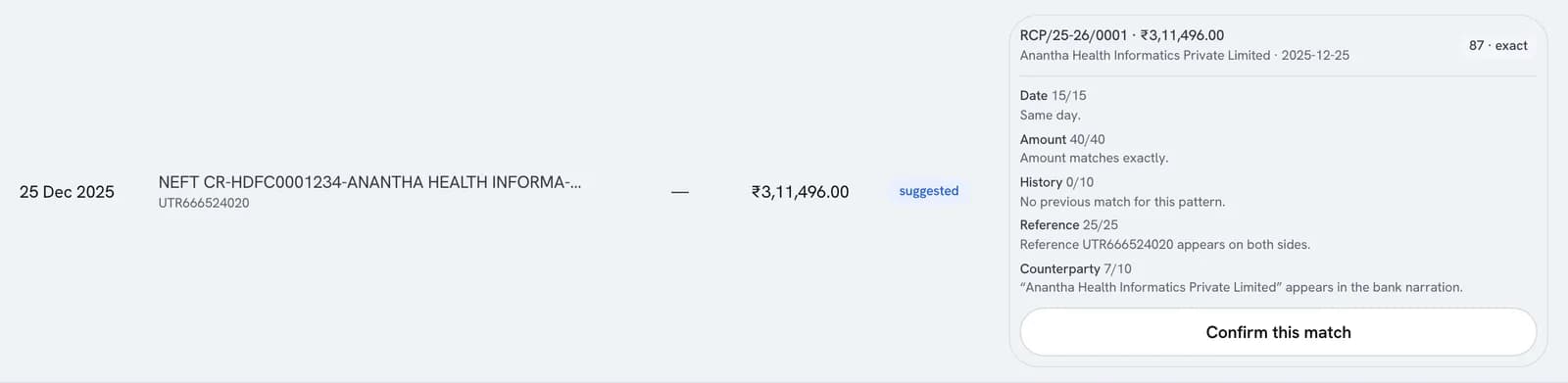
A line whose amount agrees to the paisa and whose reference ties it to the entry is labelled exact, whatever the counterparty's name looks like in the narration. Below that, the labels are strong (75 or more), possible (55 or more) and partial (35 or more). Up to three candidates are shown per line.
Press Confirm this match on the right one. Confirming records that the bank line and the entry describe the same event. It does not post anything, and it does not change any amount in your books. Nobody can confirm a match on your behalf: even an exact one waits for a person.
Work from the top. The screen prepares suggestions for the first forty open lines at a time, so on a long statement, lines further down may show no candidates until the ones above them are dealt with.
Step 3: Record what the books never knew about
Some lines have nothing to match, because nobody recorded them: bank charges, interest, a standing instruction you forgot about. For these, Falcon suggests a ledger and says why.

Check the ledger, then choose:
- Save draft creates the entry as a draft voucher, for someone with the authority to post it to review later.
- Post entry posts it now, through the same posting code every other entry uses. This button appears only for people allowed to post vouchers.
Either way the entry is a normal, balanced voucher with a number in your day book. If it turns out to be wrong after posting, it is corrected the way any posted entry is: by reversing it, not by editing it.
Step 4: Write a rule for anything that comes back every month
If the same kind of line appears every month — rent, a loan instalment, the payroll transfer, a card terminal settlement — write a rule for it under Money → Matching rules. A rule says, for example, "a line whose narration contains RENT PAYMENT belongs to Rent". You can match on words at the start, anywhere, the exact text or a pattern, and narrow it by direction and an amount range.
Rules are tried top to bottom, and the first one that fits wins, so put the specific ones above the general ones ("NEFT SALARY" above "NEFT"). A rule only suggests the ledger; the line still waits for you to save or post it.
Step 5: Read the reconciliation position
The Reconciliation position panel at the top of the screen is the whole exercise in five lines:
- Balance per the books — what your bank ledger says today.
- Balance per the statement — the closing balance the statement itself reports.
- In the books, not on a statement — entries the bank has not shown yet, such as a cheque you issued that has not been presented.
- On the statement, not in the books — lines you have not matched or recorded.
- Difference — what is still unexplained.
The difference is large straight after an import and falls as you confirm matches and record the missing entries. When every line is accounted for, it reads zero.
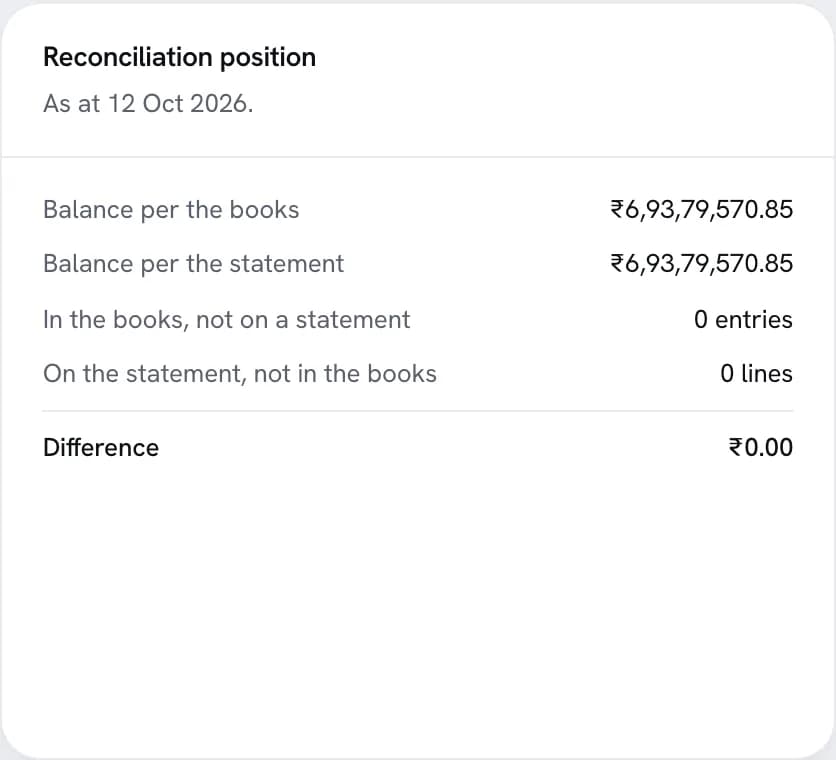
Not every month ends at zero, and that is fine. A cheque issued on the 30th that the bank clears on the 3rd is a genuine timing difference: it stays in "in the books, not on a statement" and drops off when next month's statement arrives. What should never stay is a line on the statement that nobody can explain.
What Falcon does not do
Stated plainly, so nobody relies on something that is not there:
- It does not connect to your bank. There is no live bank feed and no bank login is ever stored. Statements are files you download and import.
- It does not read scanned statements on this screen. Ask the bank for a CSV or Excel download instead. Old-style .xls files are not read either; save them as .xlsx.
- It does not confirm anything by itself. Every match and every new entry needs a person.
- The position is shown as at today. To reconcile an earlier month, import that month's statement and work it through; the panel always describes the account as it stands now.
- There is no "undo match" button yet. A confirmed match stays confirmed on screen, so confirm with care.
A monthly routine
- In the first week of the month, download last month's statement for each account.
- Import each one and check that the balance verified.
- Confirm the exact and strong matches; look harder at the possible ones.
- Record the charges and interest, and anything else the bank knew about and you did not.
- Add a rule for each line you had to classify by hand that will come back next month.
- Note what is left in "in the books, not on a statement", and check it clears next month.
For how the banking screens fit into the rest of the books, see the banking page. If you want to know where your data is kept while you do this, the security page explains it, including that Falcon online stores your books on servers in the United States.