Choosing a business mode: how Falcon adapts to a pharmacy, a builder or a kirana
Falcon has 30 business modes. What a mode changes, what it never changes, and how a chemist, a builder and a kirana each look once theirs is set.
Falcon team, Godengine7 min read
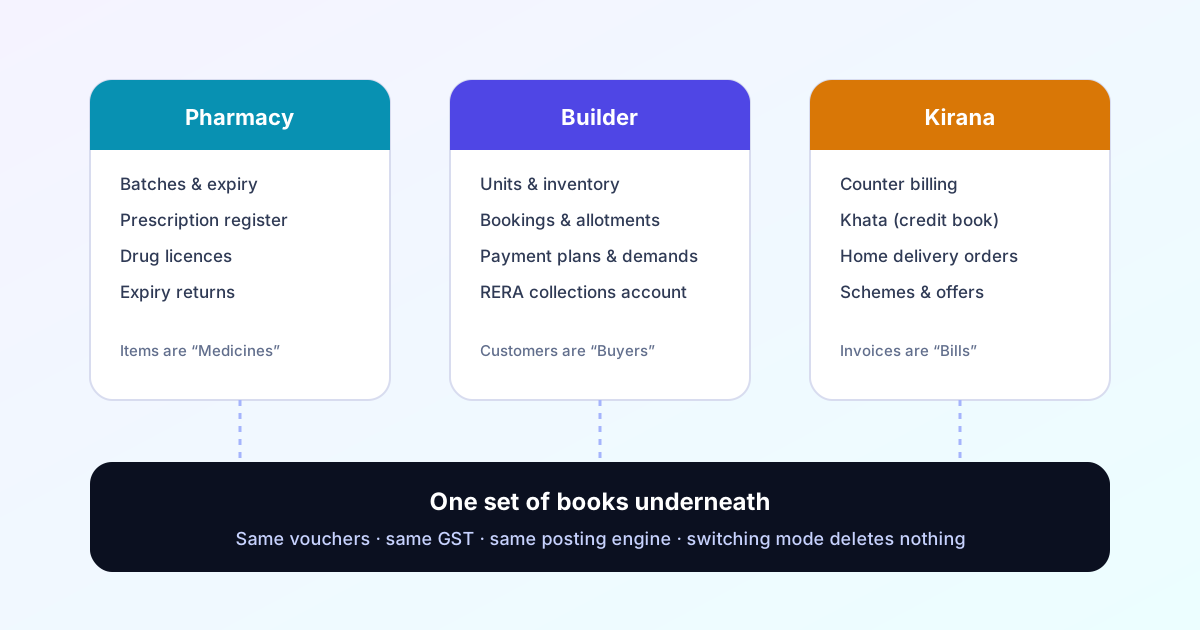
A chemist thinks in batches and expiry dates. A builder thinks in flats, towers and instalments. A kirana owner thinks in the day's counter sales and who owes what on the khata. Their accounts, underneath, are the same kind of thing: sales, purchases, GST, receipts, payments. Most accounting software makes all three use the same screens and the same words, and leaves each of them translating.
Falcon's answer is the business mode. You tell it what kind of business it is keeping books for, and the screens around the books change to fit. This guide explains what changes, what does not, and how to pick — with three trades as worked examples.
Where to set it
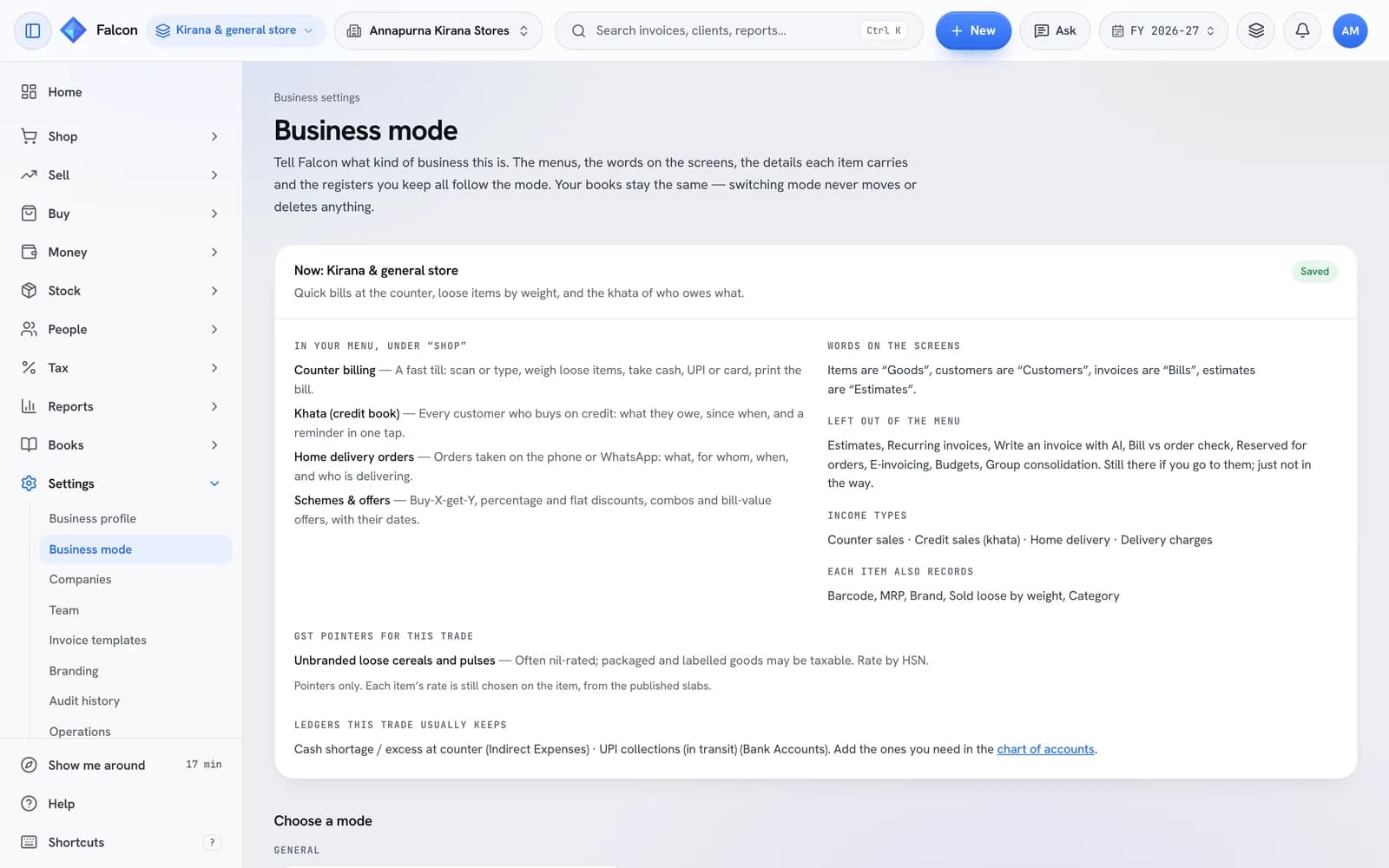
Open Settings → Business mode. Until a mode is chosen, the home screen also asks "What kind of business is this?" and takes you there. The mode belongs to the organisation, so every company inside it shares it.
There are 30 modes in ten families:
| Family | Modes |
|---|---|
| General | General business |
| Shops & retail | Kirana & general store · Supermarket & mart · Electronics & mobile shop · Hardware & building materials · FMCG distributor & wholesaler |
| Health & medicine | Pharmacy & chemist · Pharma distributor & stockist · Pharma manufacturer · Hospital & clinic · Diagnostic lab |
| Property & construction | Real estate developer · Property broker & rentals · Construction contractor |
| Gold & jewellery | Gold & jewellery |
| Food & hospitality | Restaurant, café & cloud kitchen · Hotel & homestay |
| Professional services | Architecture & interiors · CA, legal & consulting firm · IT, software & agency · Salon, spa & fitness · Travel agency |
| Education & non-profit | School, coaching & institute · NGO, trust & society |
| Making things | Manufacturing · Textile & garments · Automobile dealer & workshop |
| Trade & movement | Transport & logistics · Agri trading & mandi · E-commerce seller |
What a mode changes, and what it never touches
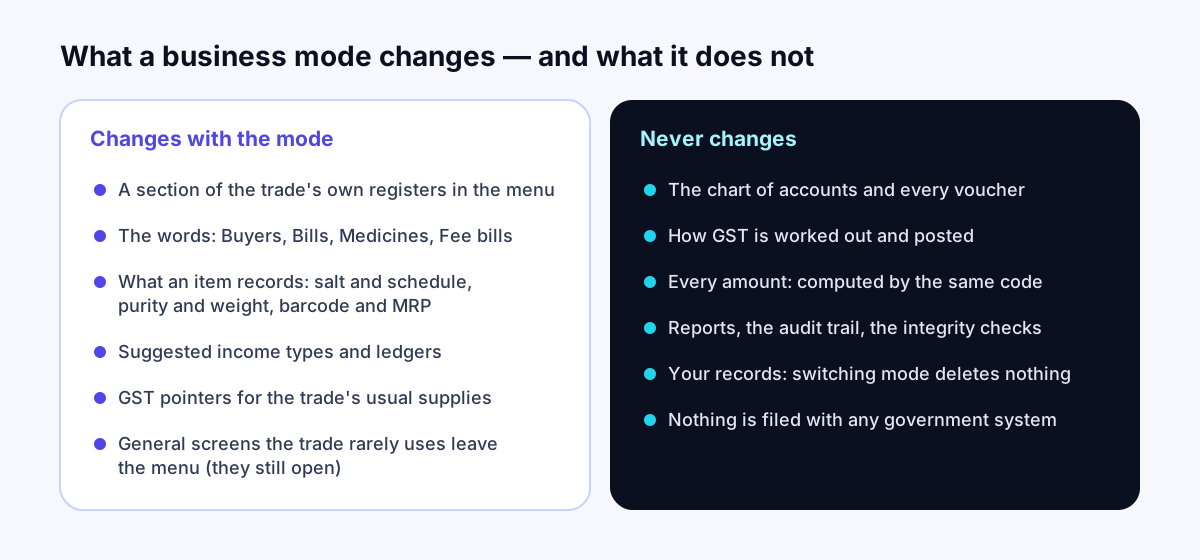
A mode changes what you see and what you are asked:
- The menu. A section with the trade's own registers appears at the top of the left rail — "Pharmacy", "Property", "Shop". General screens the trade rarely needs leave the menu, though they still open if you go to them.
- The words. A builder's customers are "Buyers" and its invoices "Demands & invoices"; a chemist's items are "Medicines"; a shop's invoices are "Bills".
- What an item records. A medicine carries its composition (salt), manufacturer, schedule, pack, MRP and rack; an ornament its purity and weights; a grocery item its barcode, MRP and whether it is sold loose by weight.
- Suggestions. Income types for the trade, ledgers it usually keeps (you add the ones you want to the chart of accounts yourself), and GST pointers for its common supplies.
It never changes the books. A sale is still an invoice, GST is worked out and posted by the same code, every amount is computed the same way, and the reports, audit trail and integrity checks are identical in every mode. Switching mode deletes nothing. A register that is not part of the new mode leaves the menu, but its records stay, and they return to the menu if you switch back.
The GST pointers are pointers. Each item's rate is still chosen on the item, from the published slabs, by you. Where a rate depends on facts Falcon cannot see, the pointer says so instead of guessing.
Example 1: a pharmacy
In Pharmacy & chemist mode the menu gains a Pharmacy section: Batches & expiry, Prescription register, Expiry & breakage returns, Drug licences, Khata and Home delivery orders.
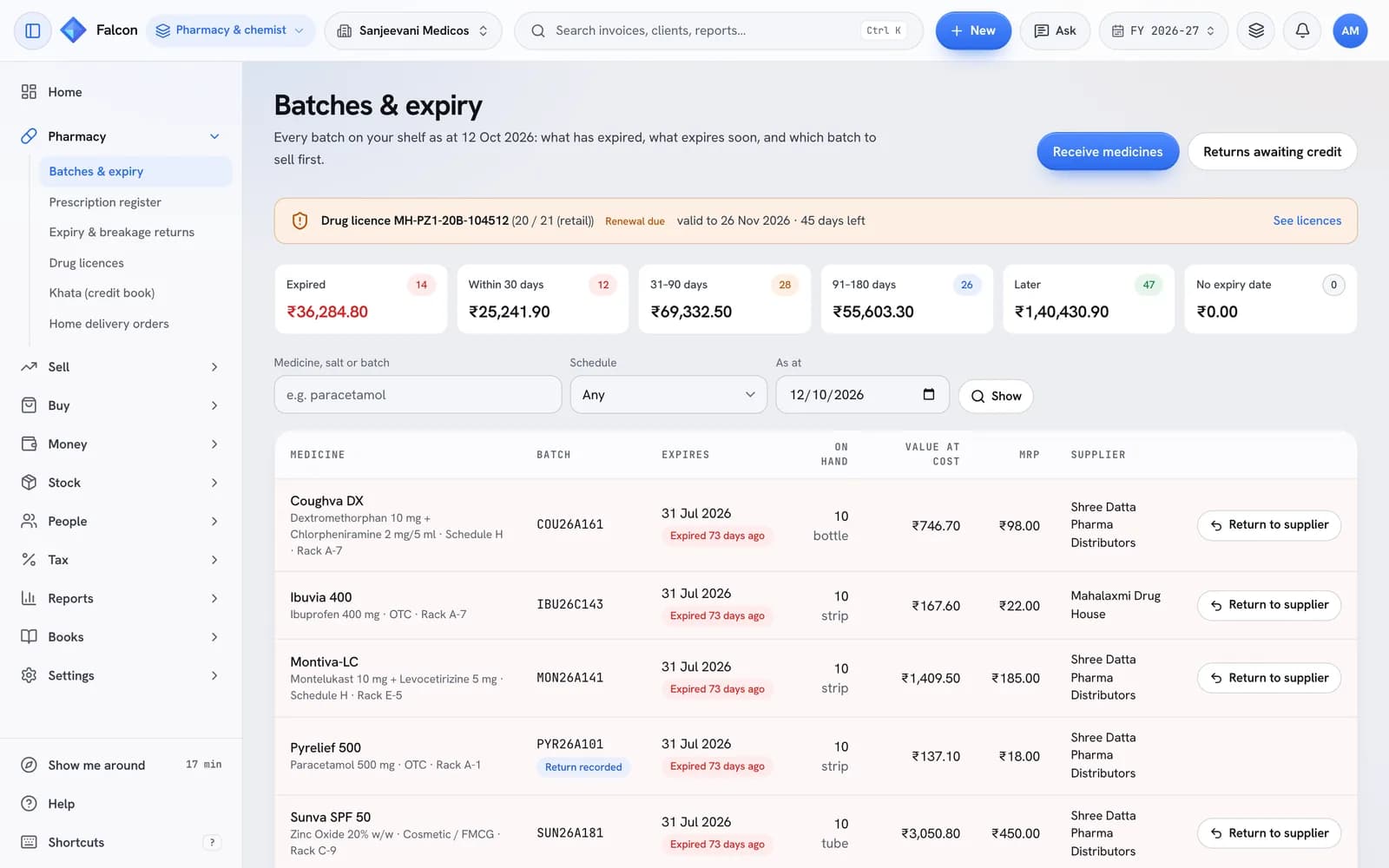
- Batches & expiry shows every batch on the shelf with its expiry date, and adds up the money already expired and expiring within 30, 90 and 180 days. For each medicine it shows which batch to sell next — the one expiring first that is still in date.
- Receive medicines lets you type the supplier's bill as printed — medicine, batch, expiry month, quantity, rate. It is recorded as an ordinary purchase, and each line lands on the shelf with its batch and expiry.
- Prescription register lists Schedule H, H1 and X sales with patient, doctor, medicine, batch and quantity, printable or as a spreadsheet.
- Drug licences shows each licence as valid, due for renewal within 60 days, or expired, worked out from its validity date every time.
Limits worth knowing: a sale does not yet record which batch it came from, so "sell this batch next" is advice, not something Falcon enforces at billing. An expiry return written in the register moves nothing in the books until the supplier's credit note or your debit note is posted.
Example 2: a real estate developer
In Real estate developer mode the Property section holds projects, towers, units, bookings, payment plans and demands, the RERA collections account, channel partners and leases.
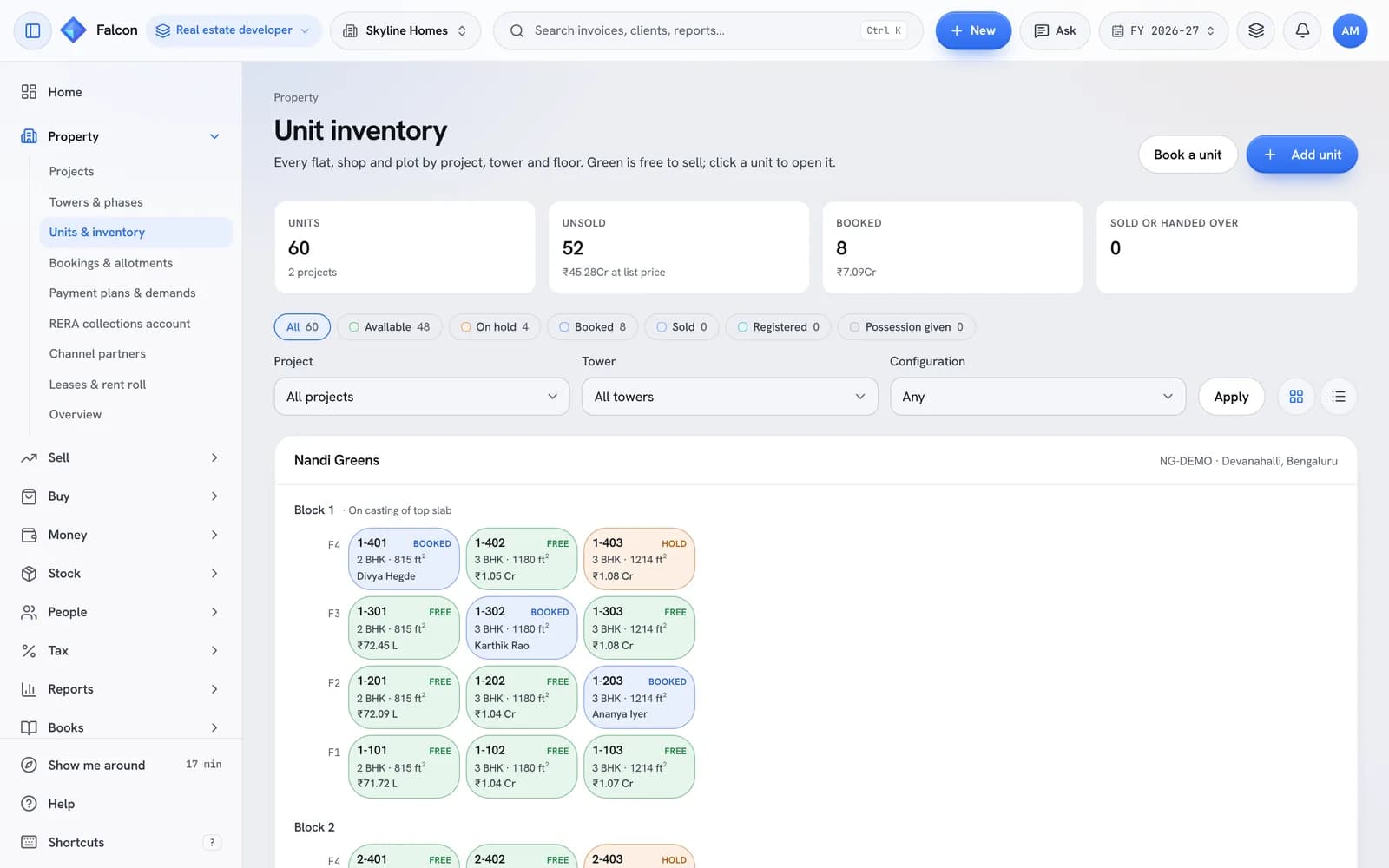
- Units & inventory lays out each tower floor by floor, every flat a tile that shows whether it is free, on hold, booked or sold, with the unsold stock valued at list price.
- Booking a flat takes the buyer, the agreement value and a payment plan — construction-linked, down payment, time-linked, flexi or subvention. The instalments always add up to the agreement value exactly, and two people cannot book the same flat.
- Demands turn due instalments into draft tax invoices. The GST rate comes from the charge you raise them under; a charge with no rate is refused, and a 0% rate needs you to confirm it.
- RERA collections account compares what buyers have paid on each project with the share that should be in its separate RERA account — 70% unless you set your State's figure.
Limits worth knowing: Falcon does not compute the 1% TDS a buyer deducts on a property of ₹50 lakh or more, or interest on late instalments. Recording construction progress lists the instalments it makes due; it never raises them on its own. Nothing is filed with RERA.
Example 3: a kirana store
In Kirana & general store mode the Shop section holds Counter billing, the Khata, Home delivery orders and Schemes & offers.
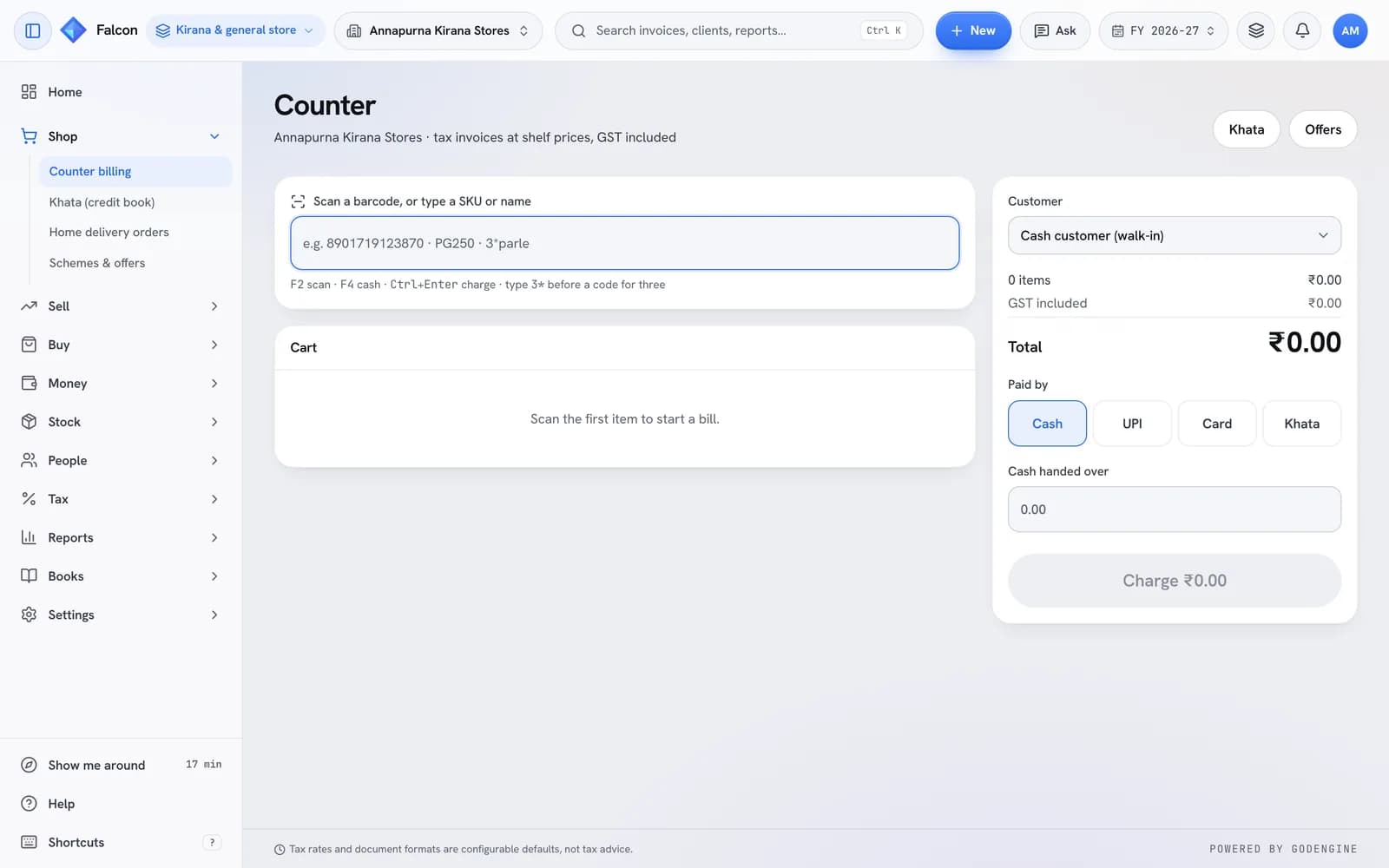
- Counter is a till: scan a barcode, or type a code or a few letters of the name; weigh loose items by typing the weight. Pay by cash (change worked out), UPI, card, or khata. Charging issues a numbered bill, records the money and offers to print.
- Prices are shelf prices, GST included; the bill shows how much of the price is tax.
- Khata lists who owes you, oldest first, read from your receivables so it always agrees with the books. WhatsApp reminder opens WhatsApp with the message written; you press send. Nothing is sent automatically.
- Schemes & offers covers buy-X-get-Y, percentage and flat discounts, combo prices and bill-value offers. The best one applies; the item's own price never changes.
Limits worth knowing: the counter does not read weighing-scale barcodes, split one bill across two payment methods, or close a shift yet.
How to choose
- Pick the mode for how you sell, not what you sell. A chemist who also runs a small clinic is usually a pharmacy; a hospital with an in-house pharmacy is a hospital, whose mode includes batches and prescriptions.
- If two trades are genuinely separate businesses, keep them as separate organisations, each with its own mode, rather than forcing one mode to fit both.
- If nothing fits, choose General business. Every general screen stays in the menu, and you lose nothing a mode would add except the shortcuts.
- Try it. Because switching deletes nothing, changing your mind costs a click.
Whatever you choose, nothing is filed with any government system on your behalf, and the platform page on business modes lists every mode with what it adds. To start, create an account — it is free while in preview.